Setting up
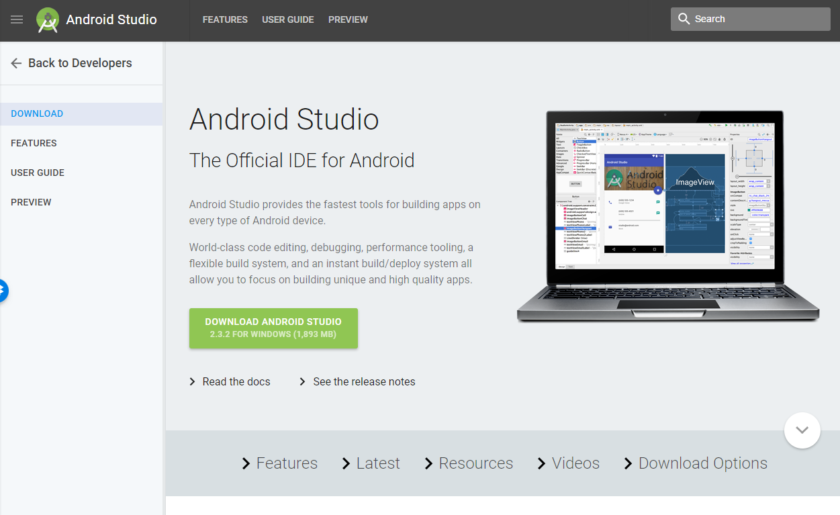
Setting up Android Studio is fairly straightforward and is easier than ever thanks to nearly everything being bundled into one installer. Download it here and you’ll get not only Android Studio but also the Android SDK, the SDK manager and more. The only other thing you’ll need is the Java Development Kit, which you can download here. Remember, Android Studio is only really your window into Java! Note: Android Studio and the SDK are rather large, so make sure you have some space free on your C:\ drive before you get started.
 Follow the simple instructions during installation and it should also set you up with an Android platform that you will be able to develop with as well. Be sure to tick the checkbox to tell the installer that you want the Android SDK as well and make a note of where Android Studio itself and the SDK are being installed. These are the defaults that it selected for my installation: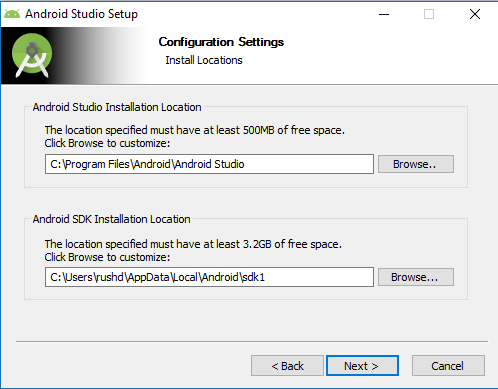
Pick a directory for the SDK that has no spaces in it. Note that the AppData folder that Android Studio has selected here is a hidden folder in Windows. That means you’ll need to select ‘Show Hidden Folders’ if you want to browse to it using the explorer.

Aucun commentaire:
Enregistrer un commentaire